
Pay for Police Clearance Using GCash Online: Easy 2026 Guide
Paying for your police clearance in the Philippines is now faster and easier with GCash. After booking your appointment on the official National Police Clearance System, you can pay the fee online using your phone instead of waiting in long lines.
To complete the payment, simply generate your reference number, choose the available GCash payment option, confirm the transaction, and save your receipt. This receipt may be needed on your appointment day as proof of payment.
In this guide, you will learn how to pay for police clearance using GCash, how to get your reference number, how to confirm your payment, and what to do if your transaction fails or does not reflect right away.
Clearance Payment Method Selector
Select your payment method for the step-by-step guide
How to Pay PNP Clearance Using GCash
- Log in to your PNP Clearance account.
- Select your appointment schedule.
- Proceed to payment options.
- Choose GCash.
- Copy the reference number.
- Open the GCash app and complete payment.
- Keep the confirmation receipt.
How to Pay Using LandBank
- Log in to your account.
- Select appointment.
- Choose LandBank.
- Open LandBank portal.
- Complete transaction.
How to Pay Using PayMaya
- Select PayMaya payment option.
- Enter your account details.
- Confirm payment.
- Wait for confirmation.
How to Pay Through 7-Eleven
- Generate a payment reference.
- Visit a 7-Eleven branch.
- Use CLIQQ kiosk.
- Pay using the reference code.
How to Pay Using Dragonpay
- Select Dragonpay.
- Choose payment channel.
- Complete payment process.
- Receive confirmation.
How to Pay at Bayad Center
- Generate payment reference.
- Visit Bayad Center.
- Present the reference number.
- Complete payment.
How to Pay Over the Counter
- Generate payment details.
- Visit a partner bank.
- Pay at the teller.
- Keep the receipt.
What is GCash?
GCash is a mobile wallet app that lets users store money, pay bills, send funds, buy load, and complete many types of digital transactions using a smartphone. It is connected to your mobile number, making cashless payments simple and accessible.
In the Philippines, GCash has become one of the most widely used payment apps because it is convenient, quick, and easy to use. Many people use it for daily transactions, online payments, bills, shopping, government-related payments, and other digital services.
For police clearance payment, GCash allows you to pay without visiting a payment center, bank, or over-the-counter branch. After booking your police clearance appointment online, you can use the payment reference number or the payment gateway option to complete the transaction securely through GCash.
Why Use GCash for Police Clearance Payment?
GCash is useful for applicants who want a faster and more convenient way to pay their police clearance fee. It helps reduce the hassle of manual transactions and long queues.
With GCash, you can:
This makes GCash a practical option for students, employees, job applicants, business owners, and anyone who needs a police clearance quickly.
Important Reminders Before Paying
Before paying your police clearance fee through GCash, make sure your application details are correct. Payment is usually connected to your appointment and reference number, so wrong information may cause problems during verification.
Check the following before you proceed:
If you need to cancel or change your police clearance appointment, review your options before completing payment. Once payment is already processed, refunds or changes may not be simple.
Police Clearance Payment Method Selector
Use this payment method selector as a quick guide before choosing how to pay your police clearance fee.
| Payment method | Best for | Notes |
|---|---|---|
| GCash | Fast mobile wallet payment | Good for users who want instant digital payment using a phone |
| LandBank | Online government payment gateway | Often used as a gateway before selecting other payment channels |
| PayMaya or Maya | Mobile wallet users | Useful if you prefer Maya instead of GCash |
| 7-Eleven | Cash-based payment through a store | Useful for users who do not want to pay directly through a mobile wallet |
| Dragonpay | Payment partner gateway | May show different payment channels, including mobile wallets and banks |
| Bayad | Bayad Center or Bayad app users | Useful for payment through Bayad outlets or mobile app |
| Bank OTC | Over-the-counter bank payment | Availability depends on the payment options shown on the gateway |
| Online bank payments | Users with online banking access | May be available through selected banks |
| ECPay | Partner payment channel | Availability may depend on the payment page |
Some guides mention that over-the-counter payment is not accepted directly at the police station for an online appointment. To avoid problems, always follow the payment methods shown on the official NPCS payment page or the payment gateway connected to your appointment.
How Much Is the Police Clearance Fee?
The police clearance payment may include a base clearance fee and a convenience fee. Some payment pages and guides show a total amount of around PHP 180.00, often broken down as a clearance fee plus a convenience or service charge.
However, the exact amount may vary depending on the payment method, payment gateway, and latest PNP/NPCS fee updates. Some official instructions mention a base clearance fee and a separate convenience fee that can change depending on the selected payment mode.
Before paying, always check the total amount displayed on your NPCS payment page, LandBank portal, Dragonpay page, Bayad page, or GCash confirmation screen. Do not rely only on old screenshots or old guides because fees can change.
Common fee reminders:
Step-by-Step Guide to Pay for Police Clearance Using GCash
Follow this step-by-step process to pay your National Police Clearance fee using GCash.
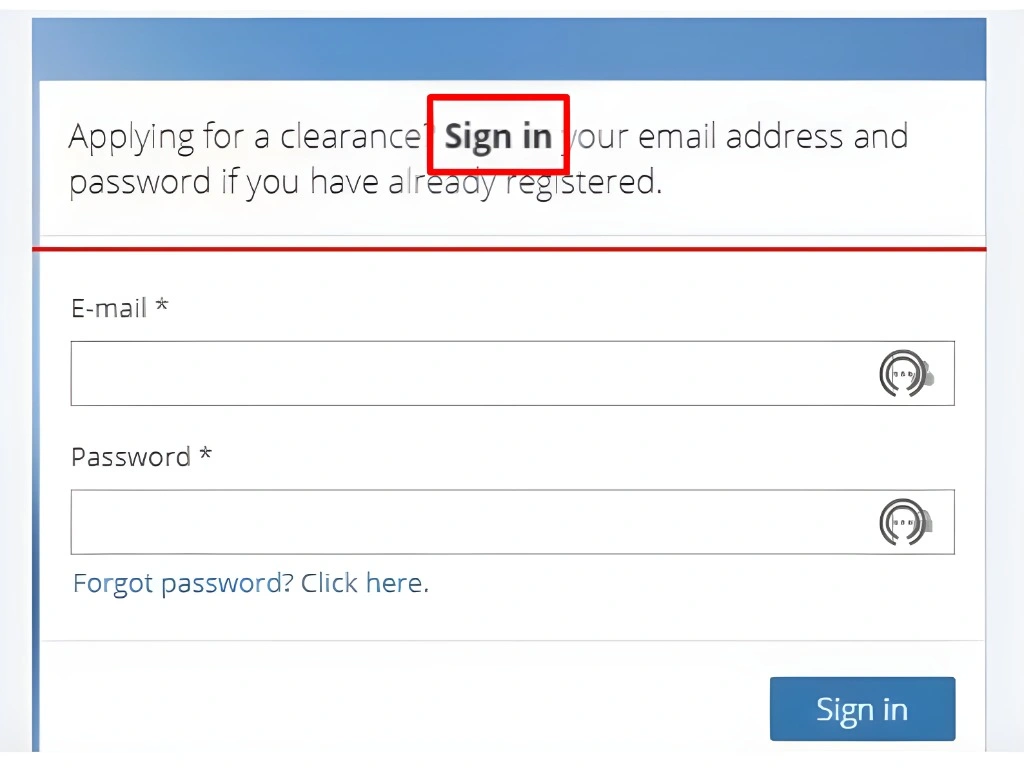
Visit the Official National Police Clearance Website:
First, go to the official National Police Clearance System website. Log in using your registered account details.First, go to the official National Police Clearance System website. Log in using your registered account details.

If you do not have an account yet, create an account first and complete your online registration before continuing to payment.
Start Your Clearance Application:
After logging in, go to the Clearance Application section.
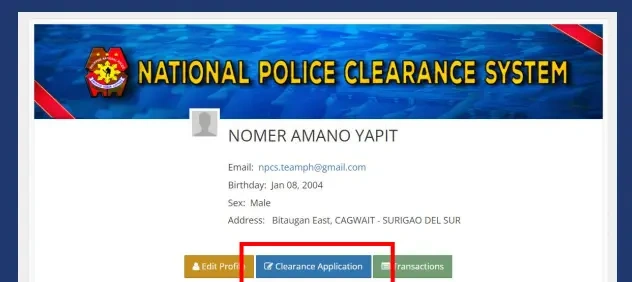
This is where you can begin or continue your police clearance appointment process. Review your profile and application details carefully before moving forward.
Check your:
Make sure everything is correct because your payment will be linked to your application.
Review Your Appointment Details:
Once your appointment details appear, double-check everything again. If the information is correct, click Next or proceed to the payment section.
This step is important because payment errors often happen when applicants rush through the details without checking the reference number, amount, or appointment information.
Click the Payment Option:
On the payment page, you may see a button such as:
The exact wording may vary depending on the portal layout and payment gateway.
In some payment flows, you may need to click Pay via LandBank first, then scroll down, click Next, and save the appointment. After that, your appointment details and reference number will appear.
Generate or Copy Your Reference Number:
After saving or confirming your appointment, the system will show your appointment details and payment reference number.

Copy your reference number immediately.
You may also see:
Keep this number safe because you may need it when paying through GCash, Dragonpay, LandBank, Bayad, or other payment partners.
Choose the Payment Method:
On the payment gateway page, select the correct payment option.
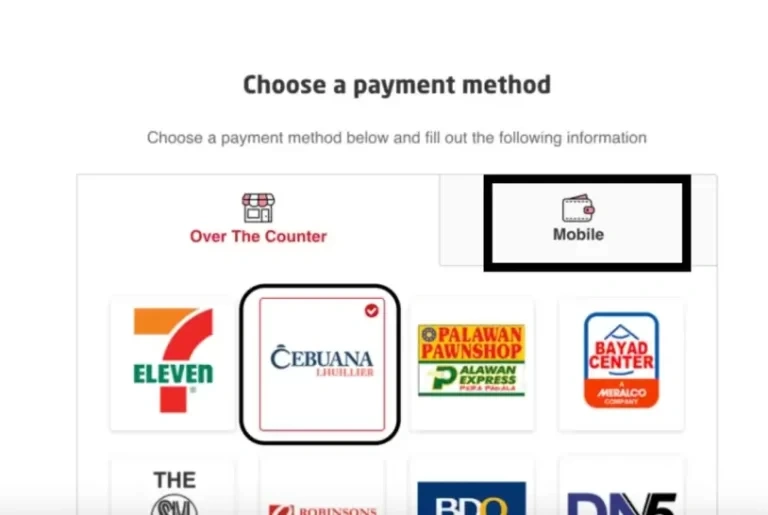
Depending on the screen, you may need to:
If you are redirected to a LandBank, Dragonpay, Bayad, or other partner payment page, look for the mobile wallet section and choose GCash.
Enter Your GCash Details:
After choosing GCash, the payment page may ask for your GCash mobile number or redirect you to the GCash payment screen.
You may see details such as:
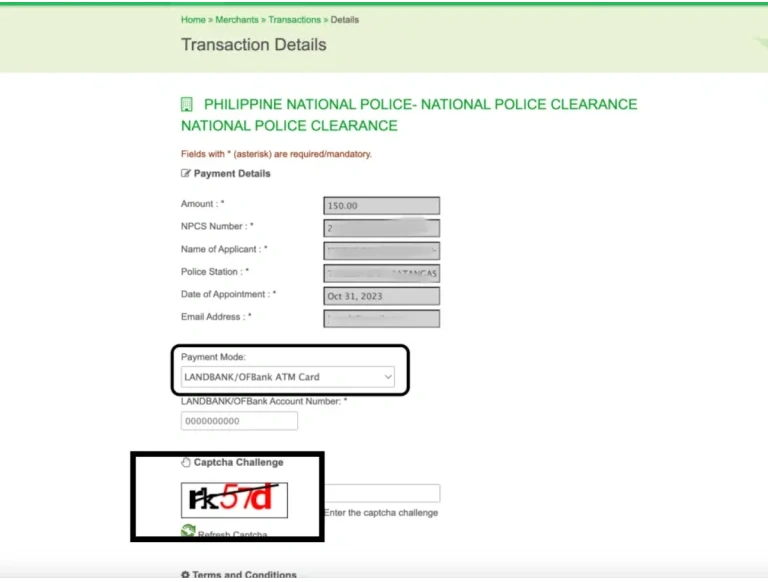
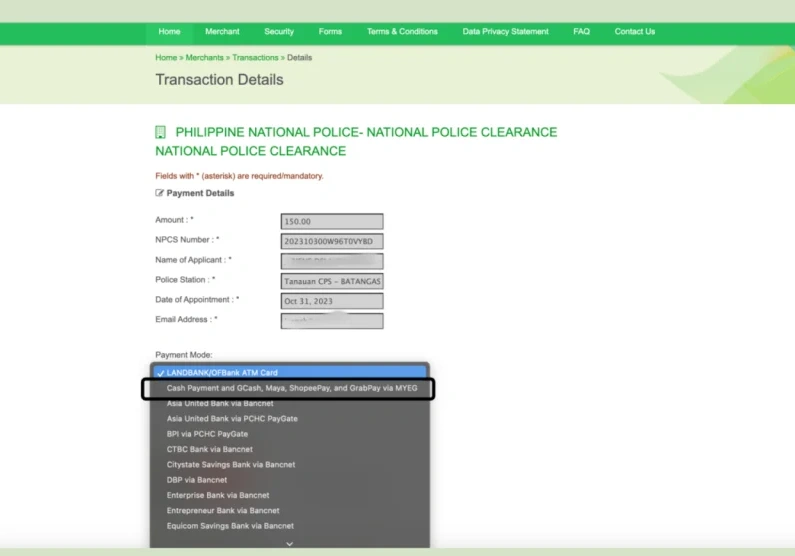
Some payment pages may show the merchant name connected to the payment processor. Review the information before continuing.
Open GCash and Authorize the Payment:
Once redirected to GCash, open or continue through the GCash payment screen.
You may need to:
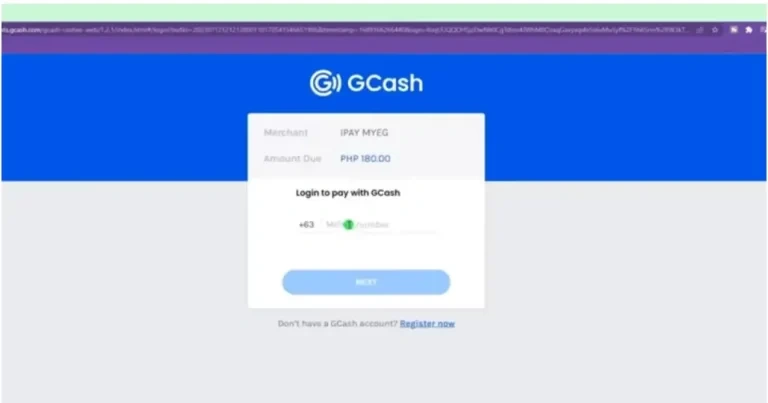
Some transactions may be authorized directly through the GCash app. Others may require a One-Time PIN sent to your registered mobile number.
Confirm the Payment:
Before tapping the final payment button, check every detail again.
Review:
If everything is correct, confirm the payment.
Save Your Payment Receipt:
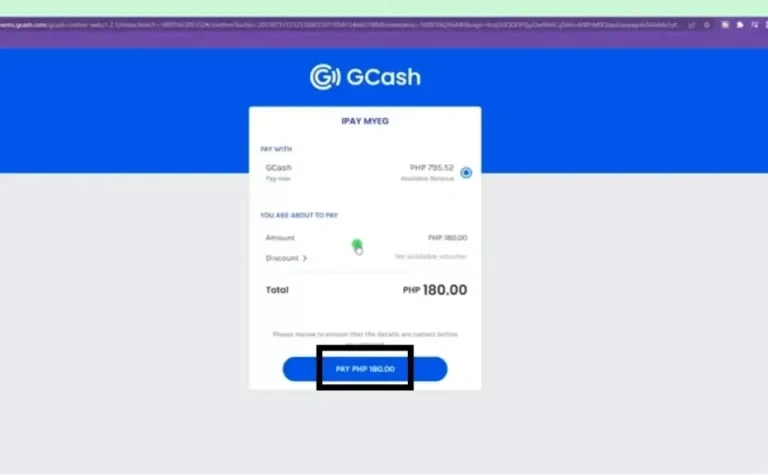
After successful payment, GCash should show a confirmation or receipt. The payment gateway may also show a successful transaction message.
Save your proof of payment immediately.
You should:
This receipt is important because you may be asked to show proof of payment during your police clearance appointment.
Alternative Method: Pay Through Partner Gateways Using GCash
Sometimes, the NPCS portal redirects you to a partner payment gateway such as LandBank, Dragonpay, Bayad, or another payment processor. If that happens, you can still use GCash if it appears as an available option.
Select GCash on the Partner Portal
After being redirected from the NPCS website, look for the list of payment options on the partner portal.
Choose GCash from the available mobile wallet or payment options.
Enter Your GCash Mobile Number
The system may ask you to enter the mobile number linked to your GCash account.
Make sure you enter the correct number because OTPs, confirmations, and authorization requests may be sent there.
Authorize the Transaction
You may need to authorize the transaction using one of these methods:
- GCash app authorization
- Push notification inside the GCash app
- OTP sent to your registered mobile number
- MPIN confirmation
Complete the authorization step and wait for the payment confirmation.
Save the Confirmation
Once payment is processed, save your receipt or confirmation screen. This completes your police clearance fee payment through GCash using a partner gateway.
How to Pay Police Clearance Fee Using the GCash App
In some cases, applicants may complete payment from inside the GCash app if the correct biller or government payment option is available.
Open the GCash App
Open your GCash app and log in using your account details.
Make sure your app is working properly and your internet connection is stable.
Tap Pay Bills or Government
Look for Pay Bills inside the app. Then check the Government category or the section where police clearance payments may appear.
The exact location can change depending on the GCash app version.
Choose the Correct Biller
If available, choose the correct police clearance or PNP-related biller. If you do not see it, return to the NPCS payment gateway and follow the payment instructions shown there instead.
Do not choose a random biller because your payment may not be credited correctly.
Enter the Reference Number
Enter the reference number generated from the NPCS portal.
Depending on the payment form, you may also need to enter:
- Amount to pay
- Email address
- Mobile number
- Account or reference details
Review and Confirm
Check the reference number and amount carefully. Once everything is correct, confirm the payment.
After payment, save the GCash receipt as proof.
How to Use Your Reference Number in GCash
Your reference number connects your payment to your police clearance appointment. Without the correct reference number, your payment may not reflect properly.
To use your reference number:
Do not change, shorten, or guess your reference number. If you are not sure which number to use, return to your NPCS transaction page and check the official payment details again.
What Payment Details Should You Review?
Before confirming your GCash payment, review all payment details on the screen.
Check the following:
If something looks wrong, do not continue. Go back to the NPCS portal and check your transaction details first.
Benefits of Paying Police Clearance via GCash
GCash is one of the most popular ways to pay police clearance fees because it offers speed, convenience, and digital proof of payment.
Convenience:
GCash allows you to pay anytime and anywhere as long as you have internet access and enough wallet balance. You do not need to travel to a payment center or bank just to settle your fee.
This is helpful for applicants who are busy with work, school, business, or personal schedules.
Quick Processing:
GCash payments are usually processed quickly. In many cases, the payment confirmation appears almost instantly, allowing you to continue the next step of your clearance application without long waiting times.
Secure Transactions:
GCash uses security features such as login protection, MPIN, OTP, transaction confirmations, and encryption. These features help protect your payment information and reduce the risk of unauthorized transactions.
Hassle-Free Payment Experience:
The app and payment gateway guide users through the process with clear instructions, payment details, and confirmation messages. This reduces mistakes and makes the process easier for first-time applicants.
Proof of Payment:
After successful payment, GCash provides an electronic receipt or transaction confirmation. This gives you immediate proof that your payment was completed.
Always save this receipt because it may be needed during verification or on your appointment day.
Cashless and Hygienic:
GCash lets you pay without handling physical cash. This is useful for users who prefer digital transactions or want to avoid crowded payment areas.
Saves Time:
Because you can pay from your phone, you save time that would otherwise be spent traveling, lining up, and waiting for manual payment confirmation.
Available for Many Users:
GCash is widely used in the Philippines and is accessible to many applicants with a smartphone and mobile number.
Other Payment Options for Police Clearance
GCash is not the only payment option. The PNP/NPCS payment gateway may offer several payment methods depending on availability.
Common police clearance payment options include:
Bank over-the-counter options may include selected banks such as:
Each payment method usually provides a reference number, confirmation receipt, or proof of payment. Keep this proof because it may be required for your police clearance appointment.
Tips for a Smooth GCash Police Clearance Payment
Follow these tips to avoid payment delays or failed transactions.
Check Your GCash Balance First
Before starting the payment process, make sure your GCash wallet has enough funds to cover the total amount due, including the convenience fee.
If the payment page shows PHP 180.00, your GCash balance should be at least PHP 180.00. If the amount is different, follow the amount shown on the portal.
Use a Stable Internet Connection
Use a strong Wi-Fi connection or stable mobile data. Weak internet can interrupt the payment process and may cause confusion about whether the transaction went through.
Do Not Refresh the Payment Page
Once the payment process starts, do not refresh the page, press the back button, close the browser, or exit the app until you see the final confirmation message.
Interrupting the payment page may cause the transaction to fail or delay confirmation.
Review All Details Carefully
Always check the reference number, amount, and personal details before confirming payment.
One wrong digit in the reference number can cause payment problems.
Save Your Receipt Immediately
Take a screenshot of your GCash receipt as soon as the transaction is successful. Also save the reference number and confirmation details.
Use the Correct GCash Number
The station mMake sure you enter the mobile number connected to your active GCash account. If you enter the wrong number, you may not receive OTPs or app authorization prompts.ay collect or update:
Avoid Multiple Payments
If your payment does not reflect immediately but your GCash balance was already deducted, do not pay again right away. First, check your GCash activity and the NPCS payment status.
Keep Your Phone Available
You may need to receive an OTP or approve the transaction inside the GCash app. Keep your phone signal active while paying.
What to Do If Your GCash Payment Fails
If your GCash payment fails or does not reflect on the NPCS/PNP portal, do not panic. Start by checking whether your wallet was charged.
Check Your GCash Activity
- Open your GCash app and go to your Activity or transaction history.
- Check if the amount was deducted from your wallet.
- If the transaction appears as successful, take a screenshot of the receipt.
Check the NPCS Payment Page
Return to your NPCS account and check your transaction status. See if the payment is already reflected or still pending.
Sometimes, payment confirmation may take a little time depending on the payment gateway.
Capture Proof
Save screenshots of:
- GCash payment receipt
- NPCS reference number
- Payment gateway confirmation page
- Error message if shown
- Date and time of payment
- Amount deducted
These screenshots will help support teams verify your payment issue.
Contact PNP or NPCS Support
If your payment was deducted but does not reflect on the portal, contact the official support channel. Include your reference number, transaction receipt, date, amount, and screenshots.
You may email the issue to:
You may also use the official hotline or contact options shown on the National Police Clearance System website.
Contact GCash Help
If the issue appears to be from the GCash side, file a ticket through the GCash Help Center inside the app.
Provide:
- Transaction reference number
- Amount
- Date and time
- Merchant name
- Screenshot of receipt
- Screenshot of error message if available
Avoid Paying Again Immediately
If your GCash balance was already deducted, avoid making another payment until you confirm the status. Paying again may cause duplicate payment issues.
Avoid Multiple Payments
If your payment does not reflect immediately but your GCash balance was already deducted, do not pay again right away. First, check your GCash activity and the NPCS payment status.
Keep Your Phone Available
You may need to receive an OTP or approve the transaction inside the GCash app. Keep your phone signal active while paying.
What If Your GCash Payment Does Not Go Through?
If your payment does not go through at all, check these possible causes:
Try these fixes:
What to Bring or Save After Payment
After paying through GCash, keep your proof of payment ready for your appointment.
Save these items:
On your appointment day, you may be asked to show your payment receipt. Keeping a screenshot on your phone helps avoid delays.
Also follow the dress code or photo capture requirements of the police clearance station. Wear proper clothing because your photo may be taken during the appointment.
Suggested Image and Screenshot Placements
Use helpful images in the article to make the steps easier for readers. Do not use unrelated images.
Banner Image
Suggested banner image:
A phone showing the GCash logo, a PNP emblem, and a blurred Philippine police building background. Add a clean title area such as Police Clearance Payment via GCash if text is needed.
Suggested alt text:
Police clearance payment via GCash with phone, PNP emblem, and Philippine police station background
Screenshot 1: Clearance Application Button
Place this image under the step about starting the clearance application.
Suggested alt text:
National Police Clearance System profile page with highlighted Clearance Application button
Screenshot 2: Payment Page and Reference Number
Place this image under the step about generating or copying your reference number.
Suggested alt text:
Police clearance online payment page showing transaction details, payment instructions, and reference number
Screenshot 3: GCash Option on Payment Gateway
Place this image under the step about choosing GCash as the payment method.
Suggested alt text:
Police clearance payment page with GCash option selected from mobile payment methods
Screenshot 4: GCash Payment Screen
Place this image under the step about entering GCash details and confirming payment.
Suggested alt text:
GCash payment page for police clearance showing merchant, amount, and mobile number login
Infographic: Payment Options
Place an infographic after the Other Payment Options section.
Suggested alt text:
Police clearance payment methods in the Philippines including GCash, LandBank, PayMaya, 7-Eleven, Dragonpay, Bayad, banks, and ECPay
Frequently Asked Questions
Can You Renew Police Clearance Online?
Final words
Pay for Police Clearance Using GCash if you want a simple, fast, and convenient way to settle your National Police Clearance fee online. After booking your appointment on the National Police Clearance System, you can choose GCash from the available payment options, enter your details, confirm the transaction, and save your digital receipt.
GCash helps make the process faster, safer, and more efficient because you can pay from your phone without visiting a bank or payment center. It also gives you instant proof of payment, which is important for your appointment.
Before paying, always review your personal details, appointment schedule, reference number, and total amount due. Use a stable internet connection, avoid refreshing the payment page, and save your receipt immediately after successful payment.
With the right steps, GCash can make your police clearance payment smooth, secure, and hassle-free.